
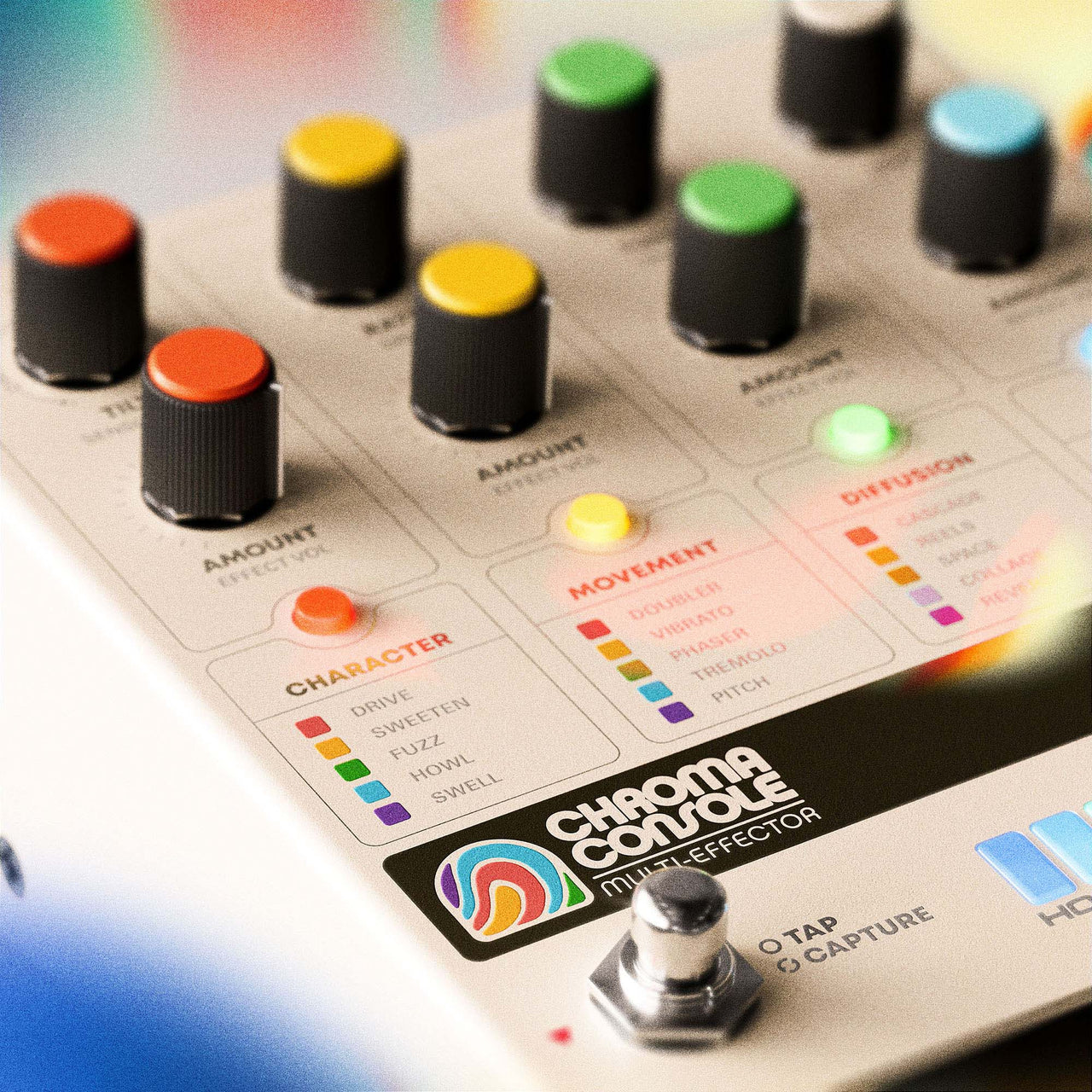
Changing FX Order on Chroma Console
Written by
Hologram Electronics
Published
Jan 2026
We've all been there before. Your pedalboard has been in the same chain for months (or years) and you're looking to change things up. After all, experimenting with your effect pedal chain is one of the most inspiring aspects of using pedals.
In the traditional setting of patch cables, power supplies, and Velcro, it can become quite the ordeal. However, when using Chroma Console, you have the ability to change the order of the pedal's effects in seconds, allowing for easy experimentation with an emphasis on discovery.
Overview
First, a bit about the kinds of effects Chroma Console has and how they are organized:
Chroma Console has 4 effect modules:
Character, Movement, Diffusion, and Texture. Each module has 5 available effects to choose from.
The Character Module is comprised of effects that focus on the dynamics of your signal, like compression, drive, saturation, fuzz, and distortion effects.
The Movement Module contains modulation mainstays, like vibrato, tremolo and phaser, with the addition of more specialized effects like a double-tracker emulation effect and a pitch-shifter.
The Diffusion Module is home to time-based effects, with a variety of delays, reverb, and more specialized effects like a looping granular delay and a reverse delay effect.
Finally, the Texture Module allows you to sculpt, squash, and break your signal with a collection of textural effects. Heavy-handed compression, multi-mode filter, and various tape-like malfunction effects like “Cassette” and “Broken.”
Default Module Order
By default, Chroma Console's effects are chained in the following order:
Character Module > Movement Module > Diffusion Module > Texture Module
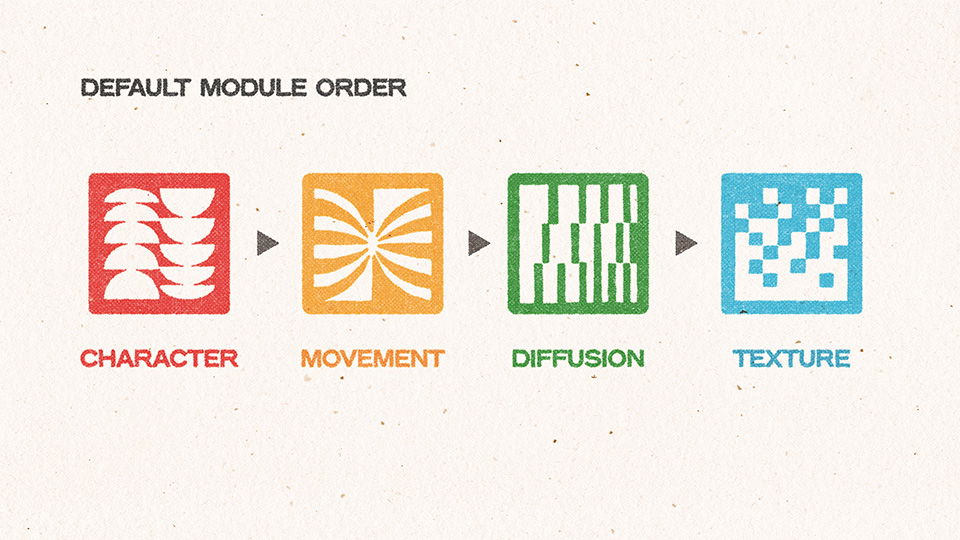
Chroma Console's default effect module routing
This chain is close to what some probably consider the most "conventional" effect order, but Chroma Console gives you the option to change the routing in seconds.
Changing Effect Order
Changing the order of Chroma Console’s effect routing is done in 2 simple steps:
Enter FX Setup by pressing the Character button and the Texture button at the same time.
Once both buttons are pressed momentarily, Chroma Console’s LEDs will illuminate in an animation that depicts your current effect routing configuration. After the animation, the LEDs will pulse blue, indicating that the pedal is awaiting input for a new routing selection.
Press the module buttons in the order you would like to route the effects.
Let's say you might want to experiment with putting a time-based effect first in the chain. Tap the Diffusion button first, then follow by tapping the rest of the order you'd like to experiment with.

Walkthrough of an alternate effect routing configuration
As you make your selection, the vertical LEDs at the bottom of the pedal will depict the new module order you are selecting. Once all module buttons have been pressed, Chroma Console will exit FX setup and your new routing will be active.
SUMMARY
For those who have wondered what would happen if you were to put reverb first and fuzz last, but decided it wouldn’t be worth the headache of rearranging everything on your board just to experiment - this feature is for you.
Chroma Console’s FX Setup actively encourages experimentation by removing a common barrier to sonic exploration, giving you the ability to change the order of your effect chain on the fly.
If you are someone who searches for new and inspiring sounds, tones and textures, Chroma Console makes it easy to discover them. Choose some effects at random, change the routing, turn some knobs - you never know what you’ll create.
